
Want to mirror your Android screen to a PC in 2025? Whether you’re recording, gaming, or just need full control from your computer, Scrcpy makes it fast, free, and easy
Scrcpy is a free and open-source tool developed by Genymobile that allows you to mirror and control your Android phone directly from your pc. Whether you’re connected via USB or wireless TCP/IP, Scrcpy provides low-latency, high-performance screen mirroring, including video and audio support.
The best part? No root access required, also you don’t need to install any apps on your Android phone. Scrcpy is perfect for streaming, app testing, and easy device control. It also supports keyboard and mouse input. Scrcpy runs smoothly on Windows, macOS, and Linux.
In this article, we will see how to use Scrcpy to mirror your Android screen to your Windows PC in 2025 – step by step!
Requirements
- Android 5.1 or higher.
- Audio forwarding (Android 11+ Required)
- Camera mirroring (Android 12+ Required)
- USB Cable.
- Enable USB Debugging.
Enable Developer Mode
Step 1: Open Settings.
Step 2: Scroll down and tap on About phone > Software Information.
Step 3: Now tap on the Build Number 7 Times.
Step 4: You’ll see: “You are now a developer” or “Developer mode has been enabled“.
Enable USB Debugging
Step 5: Go back to Settings.
Step 6: Open System (on some phones it’s Additional Settings)
Step 7: Now tap on Developer Options.
Step 8: Scroll down and turn on USB Debugging.
- When you connect to a PC for the first time, you must tap Allow on the “USB debugging authorization” popup.
- Make sure your USB mode is set to File Transfer (MTP) or a similar option that allows data transfer (varies by device).
Mirror Android Screen to PC
Step 1: Download the latest Scrcpy version. (Password: www.techforgeeks.com)
Step 2: Connect your Android Device via USB or TCP/IP.
Step 3: Now extract the zip.
Step 4: Open the scrcpy-win64-v3.3.3 folder.
Step 5: Run scrcpy-console.bat

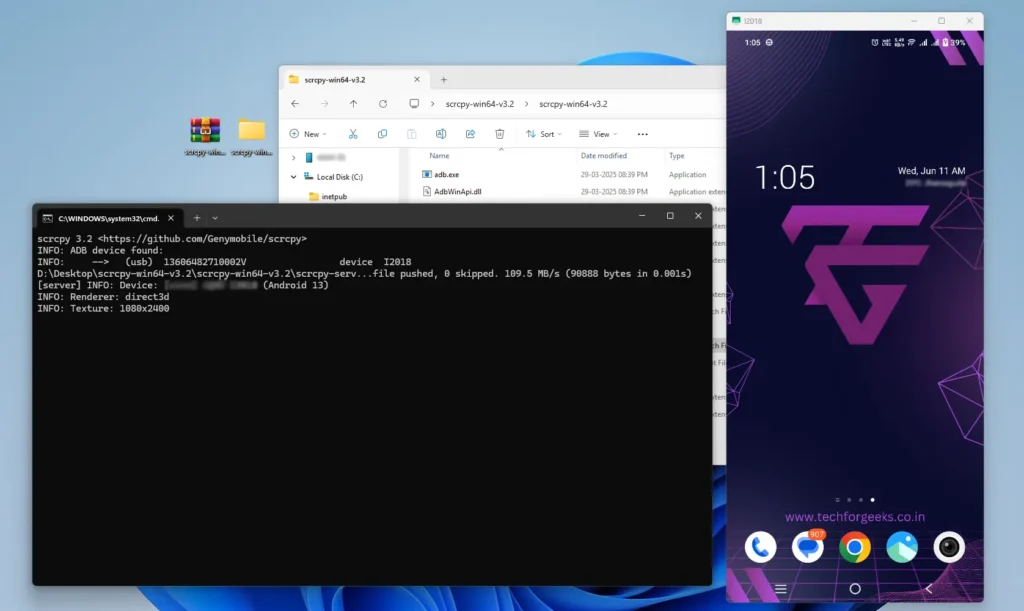
Step 6: Now the CMD window will open, and your Android Device Screen will start showing on your pc.
Add Mirrored Screen to OBS Studio
Step 1: Open OBS.
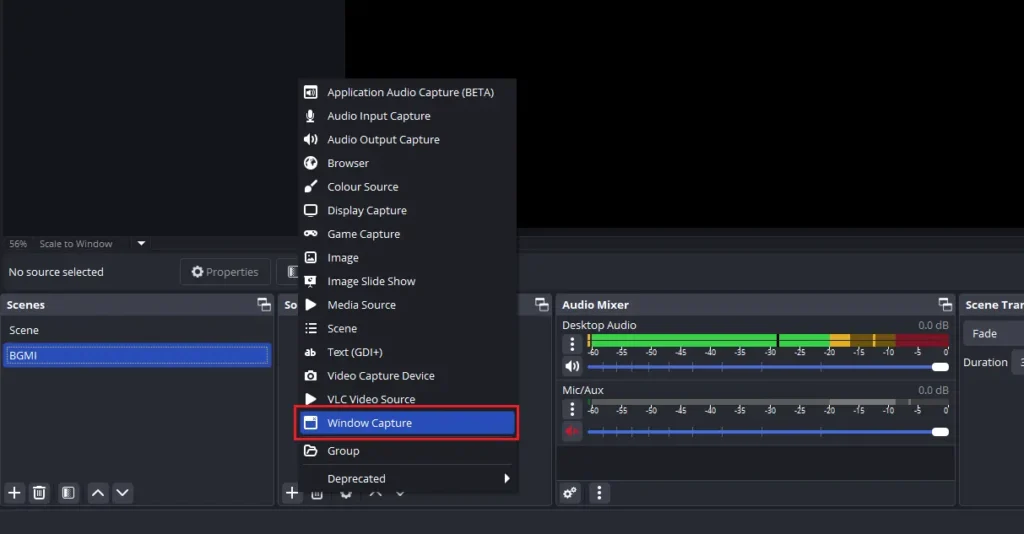
Step 2: Right-click on under Sources > Add > Window Capture or Click + icon > Add > Window Capture.
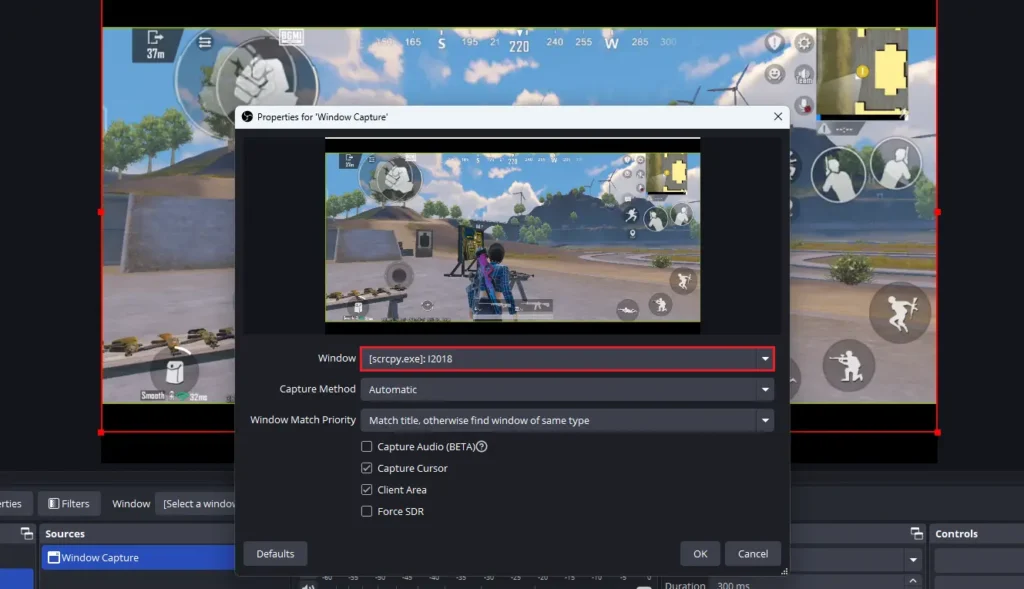
Step 3: Select Window [scrcpy.exe].
Conclusion
Scrcpy is the best tool for casual users and gamers because it is free and easy to use, requires no app installation on your phone, and works with both wireless and USB connections. Scrcpy offers a lag-free, seamless experience whether you’re streaming or just using your phone on a larger screen. No root is needed, just follow the easy instructions above
Frequently Asked Questions
How do I mirror my Android screen to PC using Scrcpy?
Download Scrcpy, enable USB debugging, connect your Android device via USB or Wi-Fi, and run Scrcpy to mirror and control your screen on your PC.
Does Scrcpy require root?
No, Scrcpy works without root. You only need to enable USB debugging from Developer Options.
Can I use Scrcpy wirelessly?
Yes, Scrcpy supports wireless mirroring. Connect once using USB, enable TCP/IP mode, then connect over Wi-Fi.
Is Scrcpy lag-free?
Scrcpy offers very low latency and is almost lag-free on USB. Wireless performance depends on your Wi-Fi network quality.



Your article helped me a lot, is there any more related content? Thanks!